
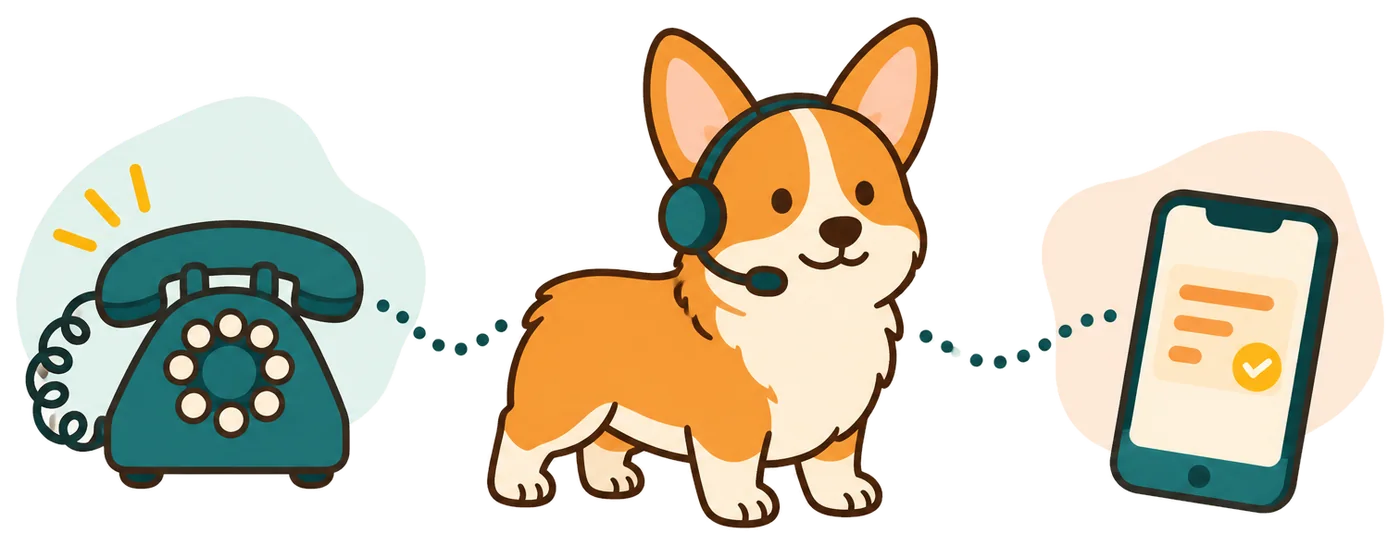
Collect support requests while technicians handle the work
Your receptionist gathers the caller's organization, contact details and reported problem. It gives your technicians a message to review when they cannot answer the support line themselves.
- Caller contextAsk for the organization, caller name and number for a return call.
- Reported impactCapture what stopped working and who the caller says is affected.
- Coverage choiceForward overflow or after-hours calls without changing your published support number.
Learn more
Our AI receptionist for IT and MSP teams turns a ringing phone into a support intake conversation. A caller can describe an email problem, an unavailable application or an issue affecting several colleagues. Your receptionist asks the questions you supplied and flags urgency under your rules.
This helps when technicians are already on a support session or the office is closed. Set forwarding for those periods, then review each call's summary and urgency tag by email or app push. The transcript and recording give your technician more context before calling the person back.
Take an outage report and try the on-call technician
Your receptionist asks about the reported issue and business impact, then follows your escalation instructions. An urgent call can reach an on-call technician through a warm transfer or page.
- Call openingIdentify the virtual assistant and announce recording before gathering support details.
- Issue intakeAsk what is affected, when it started and how to reach the caller.
- On-call handoffGive your technician a spoken summary before they accept a warm transfer.
Learn more
Suppose a caller says several people cannot open a shared application. Your receptionist asks for their organization, return number and the symptoms they observed. It can ask whether the problem affects one person or several, using your intake instructions.
When those answers match an urgency rule, it follows the on-call order you set. The technician hears the short summary and presses 1 to take a warm transfer. For routine issues, your team receives the collected details to review. Your technician makes the technical assessment and decides what action to take.
Define support scope, intake questions and escalation order
You set which services your team supports, what callers should be asked and which reports need escalation. Configure your contacts and test a routine issue alongside an urgent one.
- 1Support scopeList the services you cover and requests your team does not handle.
- 2Intake questionsChoose the caller details and reported symptoms your technicians need first.
- 3Escalation orderDefine urgent conditions and the sequence for reaching your on-call people.
Learn more
Use onboarding to explain your support hours, services and escalation policy. Tell the receptionist which questions matter for an unavailable application versus a single user's request. Provide the on-call contacts and the order in which they should be tried.
Your team can use call summaries to enter details into its existing ticketing tools. Direct software connections are not live at launch. Change the receptionist's settings in plain words when your coverage changes, then check the result with a test call. See how call setup works before forwarding your support number.
Leave technical fixes and system access to technicians
Your receptionist collects reported symptoms and routes calls; it does not diagnose faults or operate client systems. Your technical staff decides severity, response and the next support action.
- Technical judgmentTechnicians assess the reported problem and choose the appropriate support response.
- Access boundarySet intake instructions that ask for context rather than passwords or access codes.
- Ticket entryStaff enter call details into their support tools using the supplied summaries.
Learn more
Treat the AI's urgency tag as a result of your intake rules, rather than a technical diagnosis. A caller's description may be incomplete, so your technician should review the summary and confirm the facts before acting. Do not turn an intake conversation into a promise about repair time.
Configure questions around the organization, affected service, symptoms and callback details. Leave credentials out of the requested intake. RingCorgi does not open remote sessions, inspect systems or create tickets in your support software. Your staff takes over the technical work after receiving the message or transfer.
Test routine support intake and an urgent handoff
Use the browser demo to hear an intake conversation, then request a free trial to test your support rules. Check whether the resulting message gives your technician useful starting information.
- Demo firstHear the fictional after-hours message scenario before configuring your own support coverage.
- Support trialAdd services, intake questions and on-call instructions through onboarding chat.
- Handoff checkTest the contact sequence and read the resulting summary before going live.
Learn more
The fictional message-taking demo lets you talk to the receptionist without signing up. Use it to hear the opening notice and the way the conversation gathers details. Add your own IT support instructions during trial setup.
Request a free support intake trial; we email your sign-in link for setup when your trial is ready. You will receive 14 trial days capped at 100 minutes, with a card required before forwarding goes live. Test a routine access request and a reported outage. Check the questions, urgency tag and handoff, then revise your instructions where the technician needs more context.
Questions
Can I keep our existing support number?
Yes. Forward your current number to your receptionist using the guide for your carrier or phone system. You can choose all calls, unanswered calls, busy calls or after-hours calls. Test the forwarding behavior before using it for your client support line.
Can it create tickets in our support software?
No direct connections to ticketing or other business software are live at launch. Your receptionist sends the call summary, transcript and recording by email and app push notification. Your team can use those details to enter a ticket through its existing process.
Can it reach our on-call technician?
Yes. You define which reported issues count as urgent and the order of your on-call contacts. Your receptionist can warm transfer or page them. During a warm transfer, the technician hears a short summary and presses 1 to accept the caller.
What happens if it misunderstands a support issue?
Review the summary against the transcript and recording, then confirm the issue with the caller before taking technical action. The AI can make mistakes. You can adjust its intake questions and urgency rules in plain words and test the revised instructions with another call.
What will callers hear at the start?
They hear that your receptionist is a virtual assistant and that the call is recorded. This notice is always included. The receptionist then answers as your business, asking for the support details you configured and using your instructions to handle the request.

Try a support intake conversation
Start with the browser demo, then request a free trial to test your intake questions and urgent handoff before forwarding your support calls.